Belom helpLearn →

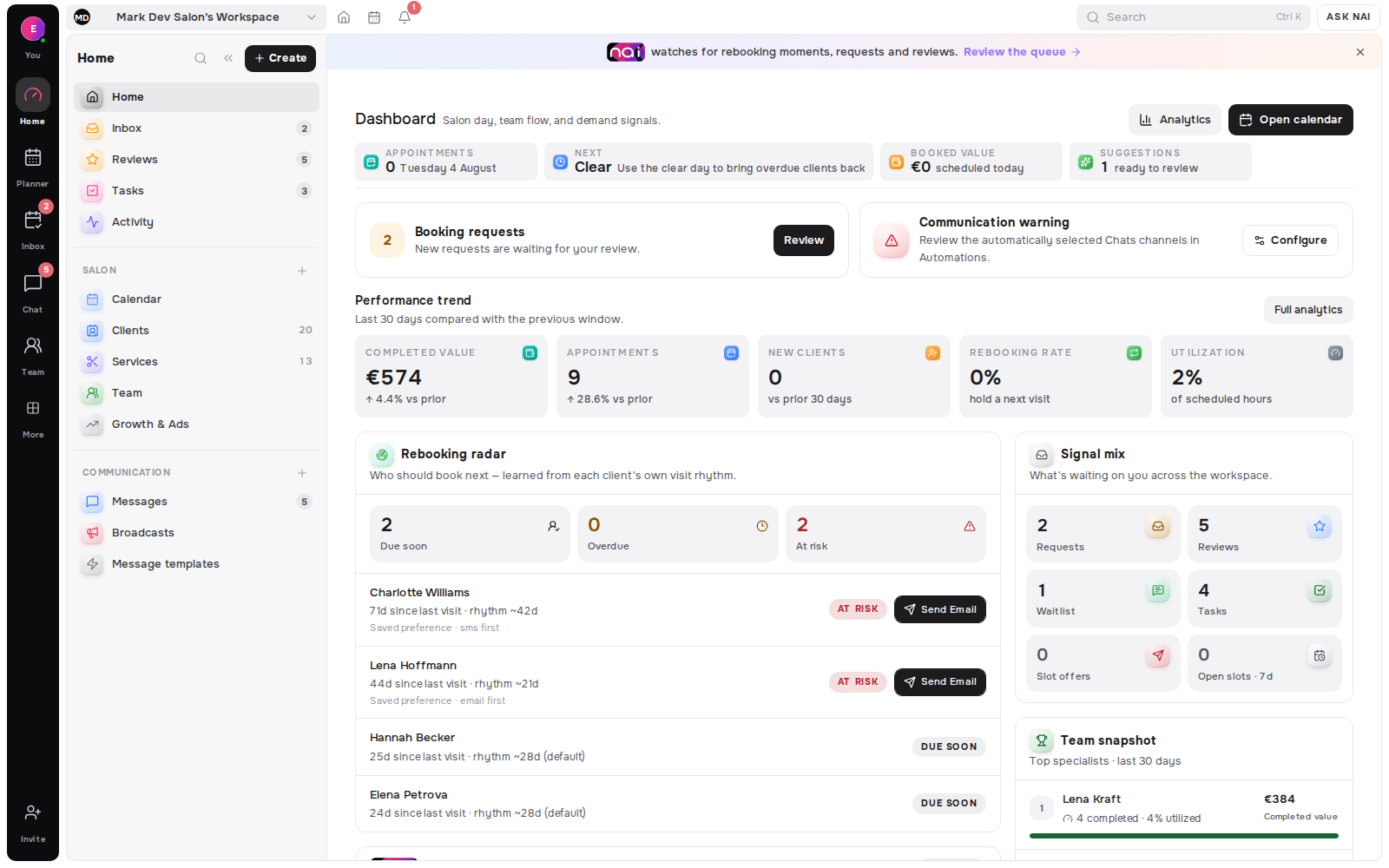
Every area of Belom, grouped the way the work happens: getting ready for bookings, running the day, bringing clients back, and the controls behind all of it.

6 chapters
Chapter 1

Orientation

Learn how Belom is organised and where to find everyday actions and support.

  • 01DashboardRead the day at a glance and identify the next useful action.
  • 02Navigation areasMove between daily work, brand, growth, insights and workspace controls.
  • 03Workspace switcherOptionalChange workspace when your account has access to more than one.
  • 04Quick CreateStart common actions without leaving the current workflow.
  • 05Command paletteOptionalUse search and commands as an optional keyboard-first shortcut.
  • 06NotificationsSee booking and workspace updates that need your attention.
  • 07Ask NAIGet contextual guidance without including sensitive client details.
  • 08HelpReturn to this course and reopen any available chapter.
Chapter 2

Ready for bookings

Prepare the real booking experience while keeping every public or financial action under your control.

  • 01Working hoursCoreConfirm when you or your team can actually accept appointments.
  • 02Services — Full modeCoreMake at least one real service bookable in a Full workspace.
  • 03Booking link — Basic modeCoreConfirm the booking link used instead of Services in a Basic workspace.
  • 04Booking previewCheck the client journey before sharing or publishing anything.
  • 05ProfileReview the business details clients will use to recognise and trust you.
  • 06PublishOptionalUnderstand what becomes public, then publish only after explicit confirmation.
  • 07LinksLearn where to manage the links you share with clients.
  • 08LocationsOptionalReview the places available for bookings when your role can access them.
  • 09ResourcesOptionalSee the rooms or equipment that support bookable work.
  • 10TeamOptionalReview team setup when it is available to your role and permissions.
  • 11Booking rulesSet the boundaries clients follow when they request or change a booking.
  • 12ConfirmationsReview how booking confirmations are handled before contacting clients.
  • 13Payments overviewOptionalSee where payments are configured without connecting a provider or creating a transaction.
Chapter 3

Run the day

Follow the daily flow from a request to a real client-linked appointment and follow-up work.

  • 01Planner or calendarSee the schedule, availability and appointments in one working view.
  • 02RequestsReview incoming booking requests and decide what happens next.
  • 03Real clientCoreCreate, import or open a real client that is visible within your access scope.
  • 04First client-linked appointmentConnect a real appointment to a client as the main activation milestone.
  • 05MessagesKeep client conversations connected to the work they are about.
  • 06TasksCapture follow-up work so the next action does not disappear.
Chapter 4

Bring clients back

Turn client history into thoughtful follow-up and timely rebooking opportunities.

  • 01Client MemoryUse visit history, notes and preferences to continue the relationship.
  • 02Today’s OpportunitiesSee the clients and moments that deserve attention today.
  • 03Rebooking RadarIdentify who may be due to book again based on real activity.
  • 04NAI recommendationsReview explainable suggestions while keeping the final decision yours.
  • 05Growth RulesUnderstand the rules that surface repeat-booking opportunities.
  • 06ReviewsSee how feedback supports trust and future bookings.
  • 07LeadsFollow the path from early interest to a known client.
Chapter 5

Brand and growth

Shape the public experience and explore growth tools without launching external actions by accident.

  • 01Page editorShape the public page while keeping drafts private until you publish.
  • 02PortfolioOptionalShow relevant work when Portfolio is available to your workspace and role.
  • 03ContentPlan and manage content that supports the client journey.
  • 04Gift cards and packagesOptionalExplore prepaid offers available to your plan without creating one automatically.
  • 05BroadcastsLearn how audience messages are prepared before any send is confirmed.
  • 06TemplatesReuse consistent messages for common client moments.
  • 07Integrations and add-onsOptional · indirectSee where they extend Calendar, Messages, Payments and Ads. Nothing connects automatically.
  • 08Advertising overviewOptionalUnderstand the advertising workspace without connecting an account or launching a campaign.
Chapter 6

Insights and control

Read performance and manage the workspace controls available to your role.

  • 01AnalyticsUnderstand booking, client and growth patterns once data is available.
  • 02My PerformanceOptionalReview individual results when this view is available to your role.
  • 03EconomyOptionalUnderstand operational money records without creating financial activity.
  • 04ActivityReview workspace events and changes within your permission scope.
  • 05Workspace settingsFind the remaining controls available for your workspace, role and plan.
Keyboard shortcuts

Optional shortcuts for moving through Belom more quickly.

Open search and commands
⌘K
Close the active dialog or panel
Esc
Move to the next control
Tab
Move to the previous control
ShiftTab
Open or confirm the focused action
Enter
Account-specific help

Ask NAI from your workspace, without sensitive client details.

Open Belom ↗